How to pair controllers with the Nintendo Switch 2
CH
11 hours ago7 min read
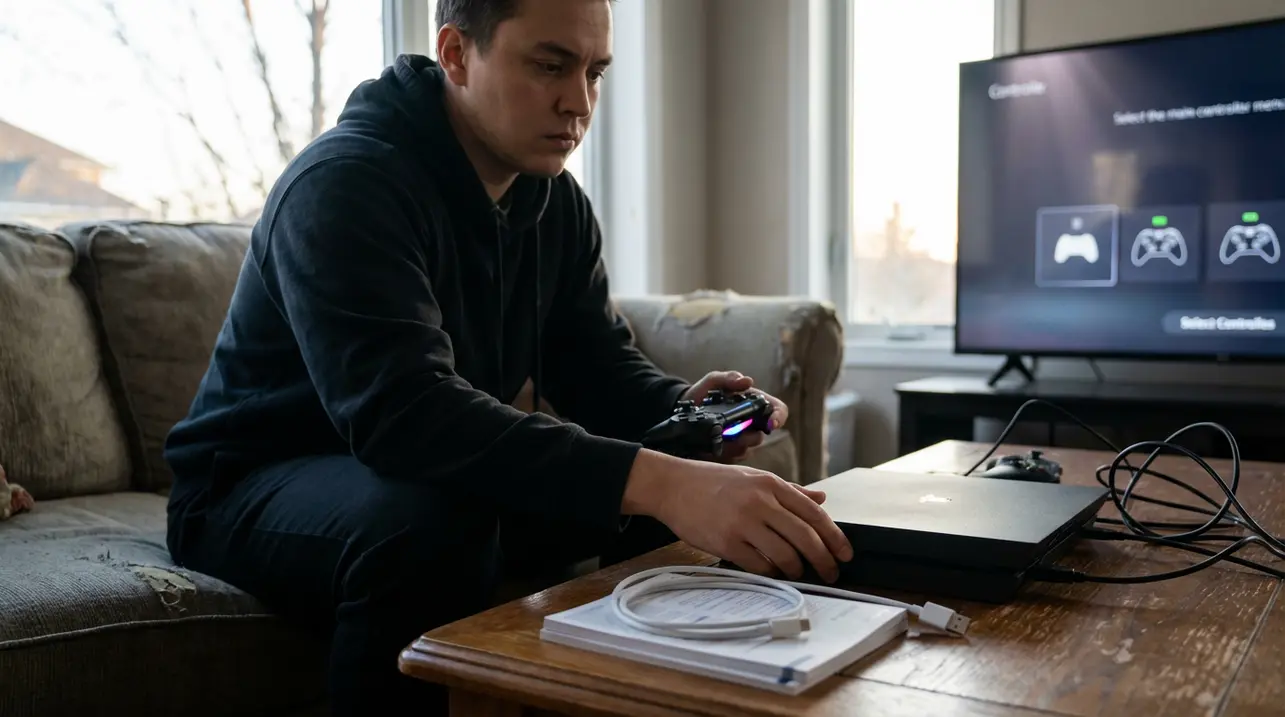
Alright, let’s get this party started. You’ve just unboxed your shiny new Nintendo Switch 2, the hype is real, and you’re ready to dive into some multiplayer chaos or finally get that perfect setup for your solo sessions.But first, you gotta get your controllers talking to the console. It’s not rocket science, but knowing the right button combos and menu dives can save you from that frustrating ‘why isn’t this working?’ moment mid-stream.The Switch 2 is a beast when it comes to controller compatibility, honestly more open than its predecessor, supporting everything from Nintendo’s own premium Pro Controller to a whole arsenal of third-party Bluetooth gamepads you might already have kicking around from your PC or phone gaming. Think of it like building your ultimate gaming loadout; the console is your base, and you get to choose your weapon.Pairing them is generally a smooth process, but the experience varies wildly between plug-and-play simplicity and a bit of Bluetooth voodoo. For the Switch 2 Pro Controller, Nintendo’s flagship gamepad that feels like a direct love letter to competitive and comfort-focused players, you’ve got two main paths: the instant-gratification wired method or the standard wireless sync.If you’re setting up fresh out of the box, just grab a USB-C cable—the same one you probably use for your phone—and plug the controller right into the docked console or the tablet itself. Wake the system, pop into the Home screen’s Controllers menu, and bam, it’s recognized.This isn’t just a quick fix for low battery; it’s the most reliable handshake, ensuring the controller’s firmware and the console are on the same page from jump street. After that initial link, you can unplug and go wireless without a hitch.For the wireless purists, you’ll head into System Settings, then Controllers & Sensors, and hit ‘Change Grip/Order’—that’s the universal pairing hub for all wireless controllers on this system. Hold down the tiny sync button on top of the Pro Controller until the LED lights start doing their frantic dance, and the Switch 2 will snag it out of the air.It’s straightforward, but I’ve seen streamers get tripped up because they didn’t hold the sync button long enough; you need that full second or two for the controller to shout ‘Hey, I’m available!’ into the Bluetooth void. Now, for the wild west of other Bluetooth controllers—your Xbox-style pads, your PlayStation-alikes, or those funky retro-style gamepads—the process gets a bit more interesting.The Switch 2’s Bluetooth stack has clearly been upgraded, offering broader support, but it’s not a free-for-all. Each controller has its own secret handshake to enter pairing mode, usually involving holding a dedicated ‘Pair’ button or a combo like the Home and Share buttons until an LED blinks.
#Nintendo Switch 2
#controllers
#pairing guide
#Pro Controller
#Bluetooth
#troubleshooting
#featured
Stay Informed. Act Smarter.
Get weekly highlights, major headlines, and expert insights — then put your knowledge to work in our live prediction markets.
This is where checking the manual (or a quick Google search) pays off. Once the controller is in discovery mode, you again navigate to that ‘Change Grip/Order’ screen on the Switch 2.
The console will actively scan, and your controller should pop up as an available device. Select it, and if all goes well, the blinking lights will settle into a steady glow, assigning it a player slot (One through Four).
The beauty here is the flexibility for local multiplayer; you can mix and match official and third-party controllers, though for competitive games, latency differences might become noticeable. The console handles up to four wireless connections simultaneously, which is perfect for a Mario Kart or Super Smash Bros.
session. If you hit a snag and a controller refuses to pair, don’t panic.
First, check the basics: Is the Switch 2’s Bluetooth actually on? It’s in System Settings > Controllers & Sensors. Is your controller charged? Some need a minimum battery level to even enter pairing mode.
Move closer to the console to avoid interference from other wireless devices, which is a common issue in crowded Wi-Fi environments. For controllers that support multiple device profiles (like some pro models that can switch between PC, Android, and Switch modes), make absolutely sure it’s set to the correct Nintendo or standard gamepad mode.
With Pro Controllers, if wireless is being stubborn, fall back to the wired USB-C method—it almost always forces a successful sync and re-establishes the wireless link for future use. Once paired, reconnecting is usually as simple as pressing any button on the controller; the console wakes up and recognizes its old friend instantly.
But if you’ve since paired that controller with, say, your Steam Deck or laptop, you might need to re-do the pairing process on the Switch 2, as many controllers can only remember one active Bluetooth host at a time. In the grand scheme of console setups, the Switch 2’s controller pairing is refreshingly user-friendly, a clear evolution from the original Switch’s sometimes finicky Bluetooth.
It respects your existing gear while offering a seamless path for its own first-party hardware. For streamers and content creators, this reliability is key—nobody wants their setup to crash during a live event.
For the everyday player, it means less time fiddling with settings and more time actually gaming, whether you’re rocking the premium feel of the Pro Controller or a budget-friendly Bluetooth pad you snagged on sale. The system’s design acknowledges that in 2024, your gaming ecosystem is rarely confined to a single box, and that’s a win for players everywhere.